 Countdown Day
iPhone how-to
How to add a countdown to your iPhone Lock Screen
To add a countdown to your iPhone Lock Screen, save the date in a countdown app, touch and hold the Lock Screen, tap Customize, tap Add Widgets, and choose the app's widget. A website cannot sit there, so you need an app. Here are the steps.
How do I add a countdown widget to my iPhone Lock Screen?
- Touch and hold the Lock Screen until Customize appears at the bottom. If it does not, unlock with Face ID or your passcode and hold again.
- Tap Customize. If iPhone asks which screen, choose the Lock Screen.
- Tap Add Widgets, or tap a widget that is already there.
- Find your countdown app in the list, then tap or drag the shape you want.
- Close the list and tap Done.
These are Apple's steps. Which event appears is up to the app, and that part differs from one app to the next.
The steps in Countdown Day
- Get Countdown Day (free), open it and add your event: a name and a date. Holidays are a tap away in Quick add.
- In the Add Widgets list, choose Countdown and pick a shape.
- Still in Customize, tap the widget and choose your event under 1st Event.
Skip the last step and the widget follows your nearest upcoming event. That suits a run of small dates. For one date that matters, choose it, so a dentist appointment never takes its place.
Which shape should you pick?
| Shape | What it shows | Good for |
|---|---|---|
| Rectangular | Event name, number and unit, with a ring that fills as the date gets closer | One date that matters |
| Circular | Number and unit letter inside a ring | A second date, or a tight row |
| Inline | One line above the clock: event name and number | Keeping the wallpaper clear |
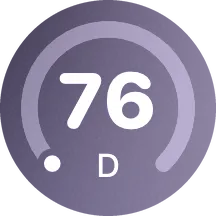
Long names are the one thing to watch on the Lock Screen. The rectangular widget shrinks a long name and then cuts it off, so "Tokyo" reads better than "Our trip to Tokyo with the kids".
What will my countdown look like in each widget shape?
Type your event and date. The drawing shows the name and the number as they would read on your Lock Screen.
Tokyo · 42 days
9:41
Questions people ask
- Why is my app not in the Add Widgets list?
- Open the app once after you install it, then look again, and scroll the whole list, because apps are not always near the top. The app also has to offer a Lock Screen widget. Countdown Day does, on iOS 18 or later.
- Why won't my timer show up on my Lock Screen?
- A timer in the Clock app shows only while it is running and counts minutes, not days. For a date weeks away you want a widget, which stays put and shows the days left.
- How do I change which event the widget shows?
- Touch and hold the Lock Screen, tap Customize, tap the widget, then choose the event under 1st Event. Leave it empty and the widget follows your nearest upcoming event.
- Does the number update without opening the app?
- Yes. The widget refreshes after midnight on its own. iOS decides the exact moment, so it can run a little behind right after midnight.
- Can I have two countdowns on the Lock Screen?
- Yes, if there is room. Each widget picks its own event, so you can keep a trip and a birthday side by side. When the row is full, remove a widget to make space.
- Is the Lock Screen widget free?
- Yes. In Countdown Day, countdown widgets in every size are free on the Home Screen and the Lock Screen. The Photo widget is Premium, and it is for the Home Screen only.
Counting to Christmas?
The Christmas countdown on iPhone page covers the holiday version, with Christmas Day and Christmas Eve ready to add.
Sources
- Create a custom iPhone Lock Screen — Apple iPhone User Guide
- Use widgets on your iPhone and iPad — Apple Support
Checked November 7, 2026 · steps checked against the iOS 27 guide and the app